 Twinsubs
How to import an SRT into CapCut, Final Cut Pro and IINA
SRT is the most widely supported subtitle format; almost every editor and player reads it. Here is how to bring one into three common places, and where we could not verify something, we say so.
Three things to get right before importing
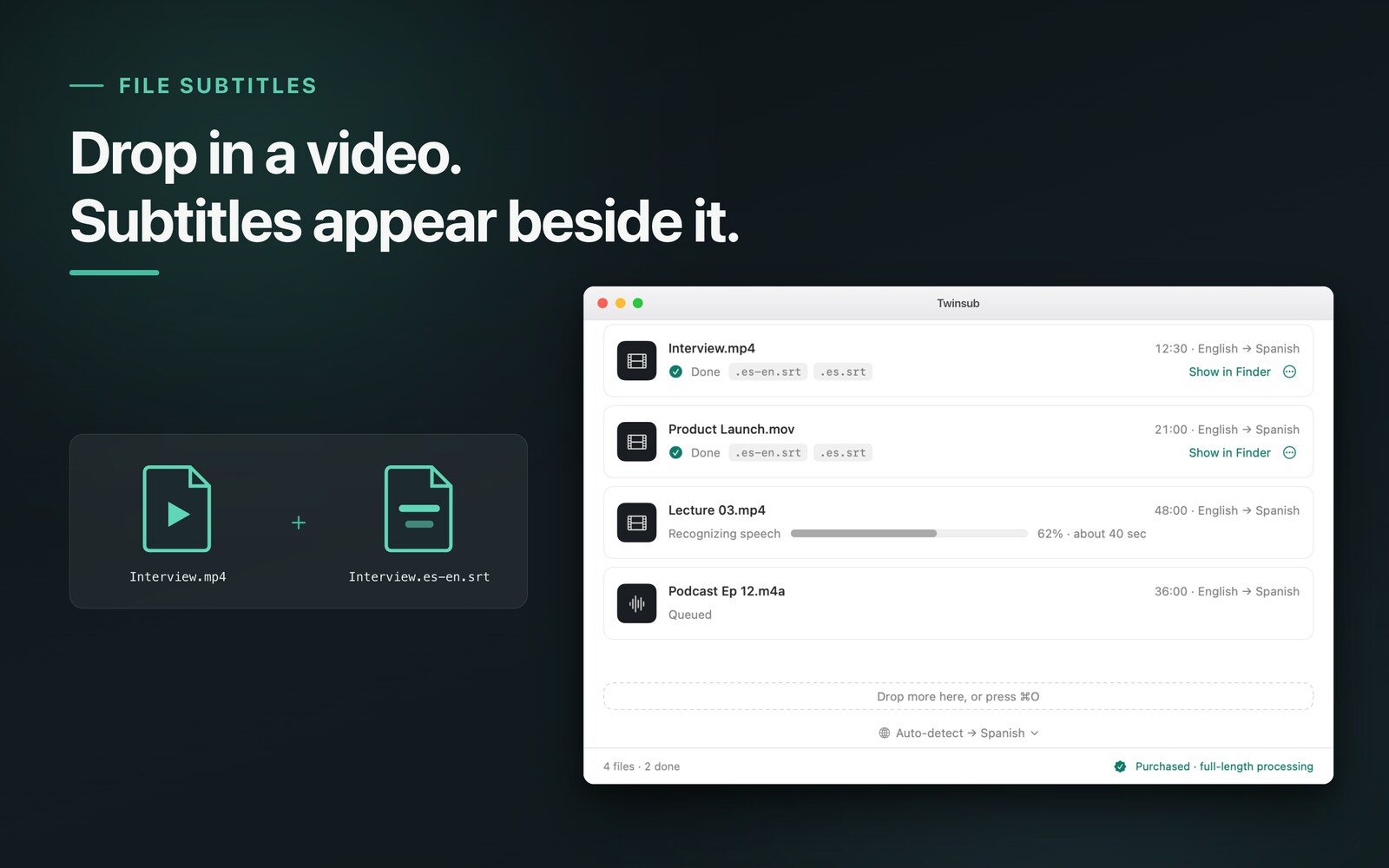
- File name and location: keep the SRT in the same folder as the video, with a name that starts with the video's name, for example
talk.mp4withtalk.en-zh.srt. Kept together, the file is easy to find later. - Encoding: an SRT should be UTF-8. Twinsubs writes UTF-8. If a file from elsewhere shows garbled text after import, re-save it as UTF-8 in a text editor first.
- Which file to pick: Twinsubs writes two files per video. The bilingual file (such as
.en-zh.srt, target on top and original below) suits cases where you want both languages; the single-language file (such as.en.srt) holds only the target language and suits burning straight into the final video.
Final Cut Pro
Final Cut Pro can import SRT directly (Apple's page lists CEA-608, iTT and SRT as caption formats that import directly). These steps come from Apple's official user guide (Final Cut Pro User Guide: Import captions, read 2026-10-10):
- Open the projectOpen the project you want to caption in the timeline.
- Choose the menuFile > Import > Closed Captions.
- Pick the file and set the roleSelect the .srt and, under “Import as Role”, use the left pop-up menu to choose a closed caption role and the right one to choose a language subrole.
- Choose where to insertUnder “Insertion Time”, “Relative to Timeline” adds the project start time to each caption's start time; “Absolute” places each caption at its own start time regardless of the project's start time. For a project that starts at 00:00:00 the two are the same.
- Click ImportThe captions appear in a closed caption lane at the top of the timeline, and each caption's start and end times decide where it sits.
One user on Apple's forum reported an “unsupported data” error when importing an SRT, apparently caused by overlapping cue times (thread). If you hit it, check for two cues whose time ranges overlap; see checking and editing SRT.
CapCut
CapCut's import entry changes name and place between versions. We did not find a fixed import path in CapCut's official help, so we do not hard-code a menu name, only how to look for it:
- Open the captions panelIn the CapCut desktop editor, open the text or captions panel and look for an entry such as “Import captions” or “Local captions”.
- Choose the SRT fileIn a bilingual SRT every cue has two lines of text, so both the translation and the original show up in the same caption.
- If you only want the target language, choose the single-language file (such as .en.srt)To style the two languages separately, split the lines inside CapCut, or first split the bilingual file into two files in a text editor.
An SRT carries no font or colour styling, so after import the editor decides the font and size; adjust them in one pass inside the editor. Other editors such as Premiere Pro and DaVinci Resolve also read SRT; check their own documentation for the exact import path, as we do not write steps for them here.
IINA and other players
If you only want to read bilingual subtitles while watching, with no editing, load the file in a player.
- IINA (checked in version 1.4.4, English interface): Subtitles > Load External Subtitle… and pick the .srt.
- Auto-loading: VLC's documentation says a subtitle file with the same name as the video (for example Dark Star.srt for Dark Star.avi) is opened automatically (VideoLAN Wiki, read 2026-10-11; its example is on Windows and we did not verify macOS separately). Twinsubs' file names are the video name plus a language code, and whether a player auto-matches a name with a language code varies, so loading by hand is the most reliable.
- Other players such as Infuse also have a “load external subtitle” entry, in different places.
If non-Latin text shows as boxes or garbage in the player, it is usually a font or encoding problem: confirm the file is UTF-8, then pick a font that covers that script in the player's subtitle settings.
How to confirm it lines up
- Check the startPlay to the first spoken line; the subtitle should appear with the voice.
- Check the middle and the endSample one spot in each. A constant offset, or a drift that grows, means the import option is wrong (such as Final Cut's insertion time) or the subtitles are not for this video.
- Check the two-line layoutA bilingual cue has two lines and can cover the picture at a large size; reduce the size once in the editor or player.
When an import fails, check four things first
- ExtensionMake sure it is .srt, not a hidden .srt.txt.
- EncodingUse UTF-8.
- Overlapping timesThe start of a cue should not be earlier than the end of the previous one.
- Empty entriesA cue with a number and timecode but no text is rejected by some software.
FAQ
I have a bilingual and a single-language file. Which one do I import?
To see the target language and the original together on screen, import the bilingual file (such as .en-zh.srt). If you only want the target language, import the single-language file (such as .en.srt). The two have the same timecodes, so you can swap them any time.
The subtitles do not line up with the speech after import. What now?
In Final Cut Pro, look at the Insertion Time option first: when the project does not start at 00:00:00, “Relative to Timeline” adds the project start time to every cue while “Absolute” places each cue at its own timecode, so the results differ. In other software, first confirm the video starts at the beginning of the timeline, then spot-check the start, the middle and the end.
Non-Latin text shows as boxes or garbage after import. Why?
First confirm the file is UTF-8, then pick a font that covers that script in the editor's or player's subtitle settings. Font and size are decided by the editor or player; an SRT file carries no styling.
Final Cut Pro reports an error on import.
Check whether two cues overlap in time, and whether there are empty entries with a number and timecode but no text. A user on Apple's forum reported an “unsupported data” message when importing an SRT, apparently caused by overlapping times.
I want to fix a few words before importing.
An SRT is plain text, so any text editor can open and change it. Save it back as UTF-8 with the .srt extension. See the guide to checking and editing SRT.
Updated 2026-10-12. Back to the Twinsubs home page