 Twinsubs
Generate subtitles from a video on your Mac and get an SRT file
You have a video with no subtitles and you want a subtitle file that CapCut, Final Cut Pro or a player can load. The footage is unpublished, so you would rather not upload it; you make a lot of videos, so paying by the minute adds up; and you would rather not make an account first. Twinsubs turns it into three steps: drop the video into the window, wait a little, and an .srt appears beside it. A video in your own language gets punctuated subtitles in that language, and a foreign-language video can get a translated, bilingual file as well. Recognition and translation both run on your Mac.
What you get
- A single-language file, such as
video.en.srt: when the source and target language are the same (an English video with English as the target), this is the only file. It has punctuation and sentence-aware breaks, and no translation. - A bilingual file, such as
video.en-zh.srt(an example): when a foreign-language video has another target language, you also get a file with the target on top and the source below. You can swap the order in Settings. - Standard UTF-8 SRT: CapCut, Final Cut Pro, IINA and anything else that reads SRT can use it. It is not tied to one tool.
Three steps
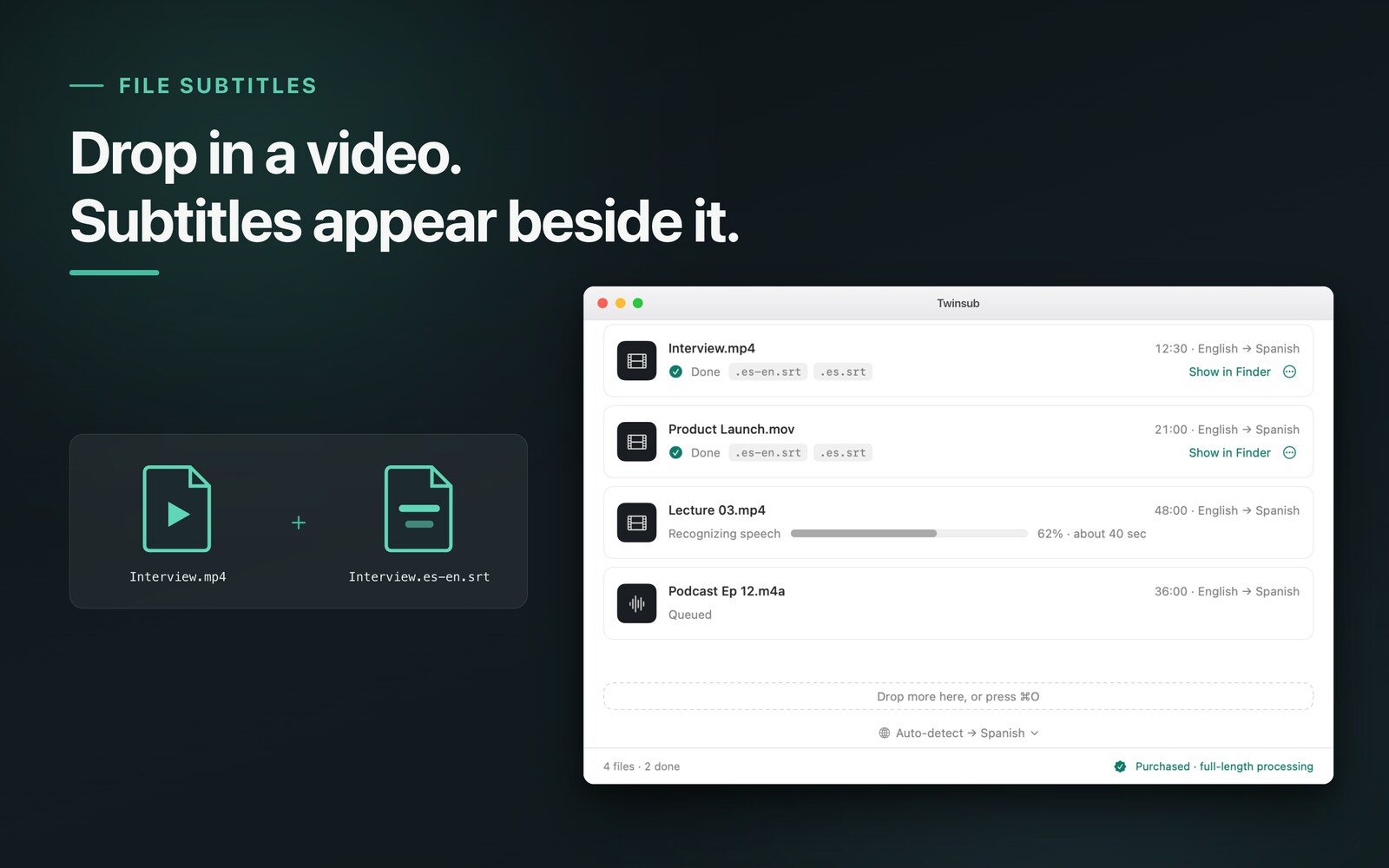
- Drop it inDrag the video into the window. You can drop many at once and they are processed in turn.
- Wait a momentA 10-minute video takes about a minute, and progress is always visible. The source language is detected for you, or you can set it by hand; you choose the target language.
- Find the subtitles beside the videoThe subtitle file sits in the same folder, named after the video with a language code and .srt added. The first launch needs a connection to download a speech model once (under 1 GB); after that recognition runs on your Mac.
Which videos suit it
- Your own talking-head videos, tutorials, interviews and screen recordings: a video in your language gets punctuated subtitles ready to drop into an editor and style.
- Unpublished footage: a video from a partner that is not public yet never leaves your Mac.
- A lot of videos at once: drop the whole batch in, let it work through the queue, and check each result. With the purchase there is no per-minute charge.
- A foreign-language video you want translated: pick your target language and the same run also gives you a bilingual file. The full workflow is in add bilingual subtitles to a video.
How well the lines are cut
The subtitles are not just recognized words poured into a file. They are cut by clause: short lines, never a break in the middle of a word, at most two lines per cue. Machine recognition still makes mistakes, especially with heavy accents, loud music and technical terms, so check names and numbers against the video: see check and edit SRT subtitles.
1
00:00:00,060 --> 00:00:02,900
I want to have a chat with you today.
今天我想和大家聊一聊,

2
00:00:02,900 --> 00:00:05,300
How can a small team
spend very little money?
一个小团队怎样用很少的钱
The first two cues of a bilingual SRT. It is a text file that any editor can open.
Compared with other ways
| Way | Where the video goes | How it is charged | Account? |
|---|---|---|---|
| Recognition built into an editing app | Depends on the app and its settings | Depends on the app; some need a membership | Depends on the app |
| An online subtitle website | Usually uploaded to a server | Often by the minute or by subscription | Usually yes |
| Whisper on the command line, set up yourself | Stays on your computer | Free, but you build the setup | No |
| Twinsubs | Stays on your Mac | Free for the first 10 minutes of each video, then a one-time purchase | No |
The first three rows describe these approaches in general, not any one product; check each product for specifics. A sourced, point-by-point comparison is on the comparison page.
Limits, stated up front
- It does not burn subtitles into the picture. It writes an SRT; to burn them in, import the file into an editor and choose burn-in when you export.
- There is no built-in subtitle editor, no speaker separation and no ASS output.
- File mode offers a dozen or so source languages: English, Chinese (Simplified and Traditional), Cantonese, Japanese, Korean, French, German, Spanish, Italian, Portuguese and Russian. A language outside the list may not be recognized.
- The free version processes the first 10 minutes of each video; the purchase removes the limit.
- You need a Mac with macOS 26 or later, Apple silicon.
After you have the SRT
To load it into CapCut, Final Cut Pro or IINA, see import an SRT into CapCut, Final Cut Pro and IINA. To proofread it or turn it into plain text, see check and edit SRT subtitles. For recordings and podcasts, see audio to subtitles. If you need to understand a video that is playing right now, see live translate videos and streams.
FAQ
Can it subtitle a video in the language I speak?
Yes. When the source and target are the same language (an English video with English as the target), it writes one punctuated, sentence-aware single-language file, such as video.en.srt, and does not translate.
How long will a long video take?
About a minute for 10 minutes of video, with progress always visible. The free version processes the first 10 minutes of each video; the purchase processes the full length.
Does it need a connection?
Recognition and translation both run on your Mac, and the video is never uploaded. Only the first launch needs a connection, to download the speech model once; the translation language packs come from macOS and work offline afterwards.
Can I process many videos at once?
Yes. Drop several videos or audio files in together. They queue up and are processed in turn, one row per file with its progress and status.
Can it burn the subtitles into the video?
No, it only writes SRT. To put the subtitles into the picture, import the SRT into an editor such as CapCut or Final Cut Pro and choose burn-in when you export.
How accurate is it?
Machine recognition makes mistakes, more so with heavy accents, loud background music and technical terms. Always check names and numbers against the video.
What does it cost?
The free version processes the first 10 minutes of each video; everything else is the same. A one-time purchase removes the limit, with no subscription.
How is this different from the page about translating foreign-language video?
This page is about getting a subtitle file from a video, mainly subtitles in the video's own language. The full workflow for a foreign-language video, with the creator reminders, is on the other page.
Updated 2026-10-12. Back to the Twinsubs home page