 Twinsubs
Twinsubs Live translation · bilingual subtitles
TwinsubsLive translation and bilingual subtitles on your Mac
Two jobs, one app. Whatever is playing on your computer is translated live into your language and floats over the screen; a video you drop in gets a bilingual subtitle file beside it. It all runs on your Mac: no upload, no account.
- Everything runs on your Mac. Your sound and videos are never uploaded
- No account and no API key
- Free for the first 10 minutes of each video; a one-time purchase removes the limit
Want early access, or have an idea? Write to twinsub@gatheon.com
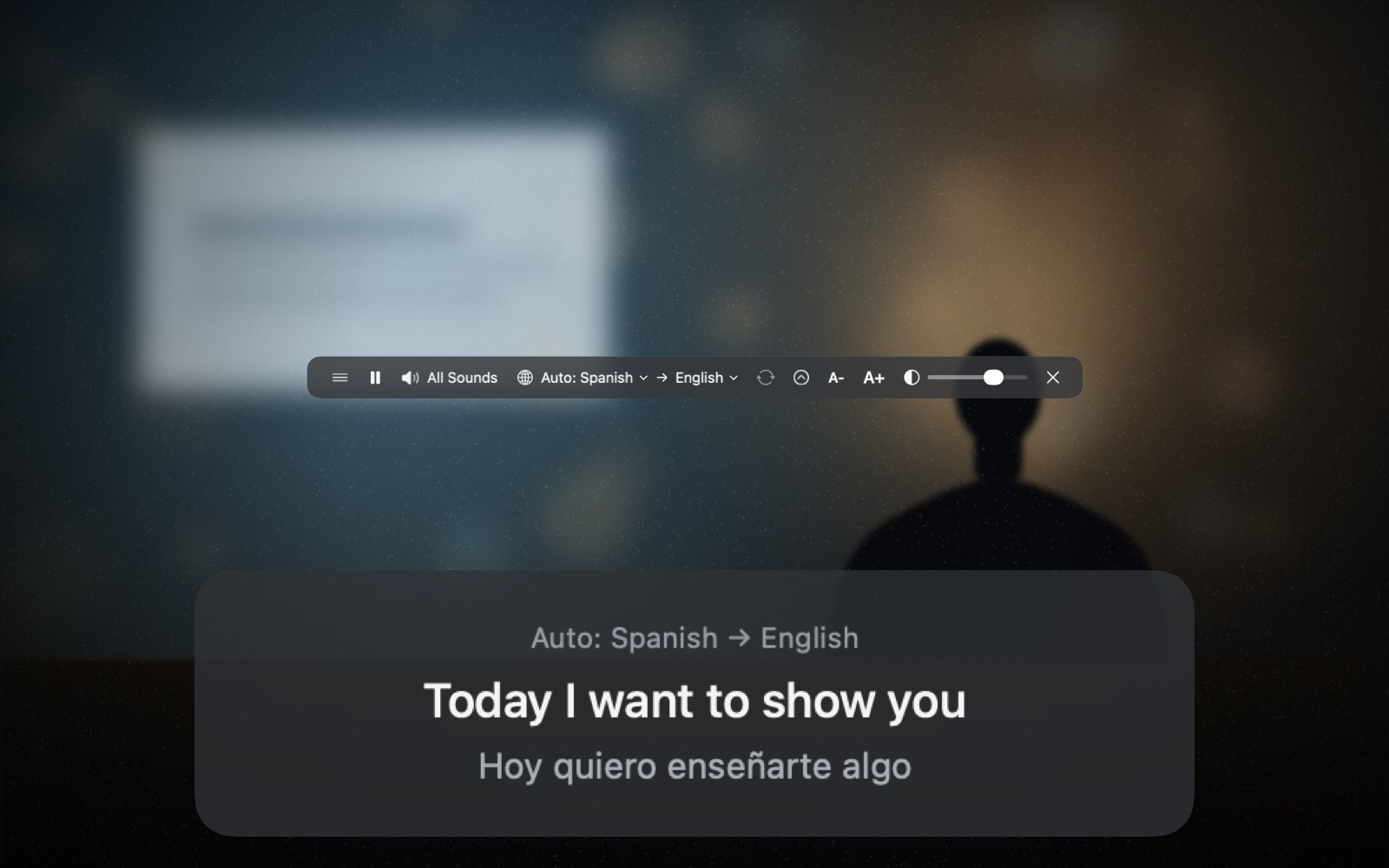
Live translation
Most translators put the original on the left and the translation on the right, in a window you have to switch to. Twinsubs stacks the two into a two-line caption that floats over whatever you are watching, so your eyes never leave the video.
A typical translator
Original on the left, translation on the right, in a window you have to switch to
Twinsubs
The two stacked into two lines, floating over what you are watching
Sound from any app
Browser, meeting app or player: whatever plays gets translated. Add the microphone and “me” and “them” are shown separately.
Works offline
Recognition and translation both run on your Mac, and once the language pack is downloaded you do not need a connection.
Language detected for you
The spoken language is detected automatically, and if it changes midway the caption follows.
No recording, nothing saved
Want to keep it? Save it yourself as txt or SRT.
It understands English, Chinese, Cantonese, Japanese, Korean, German, French, Spanish, Italian, Portuguese, Hindi and more, and translates into 20 languages.
Where it helps
- Foreign-language streams and videos with no subtitles
- Meetings, in any meeting app
- Online courses and lectures
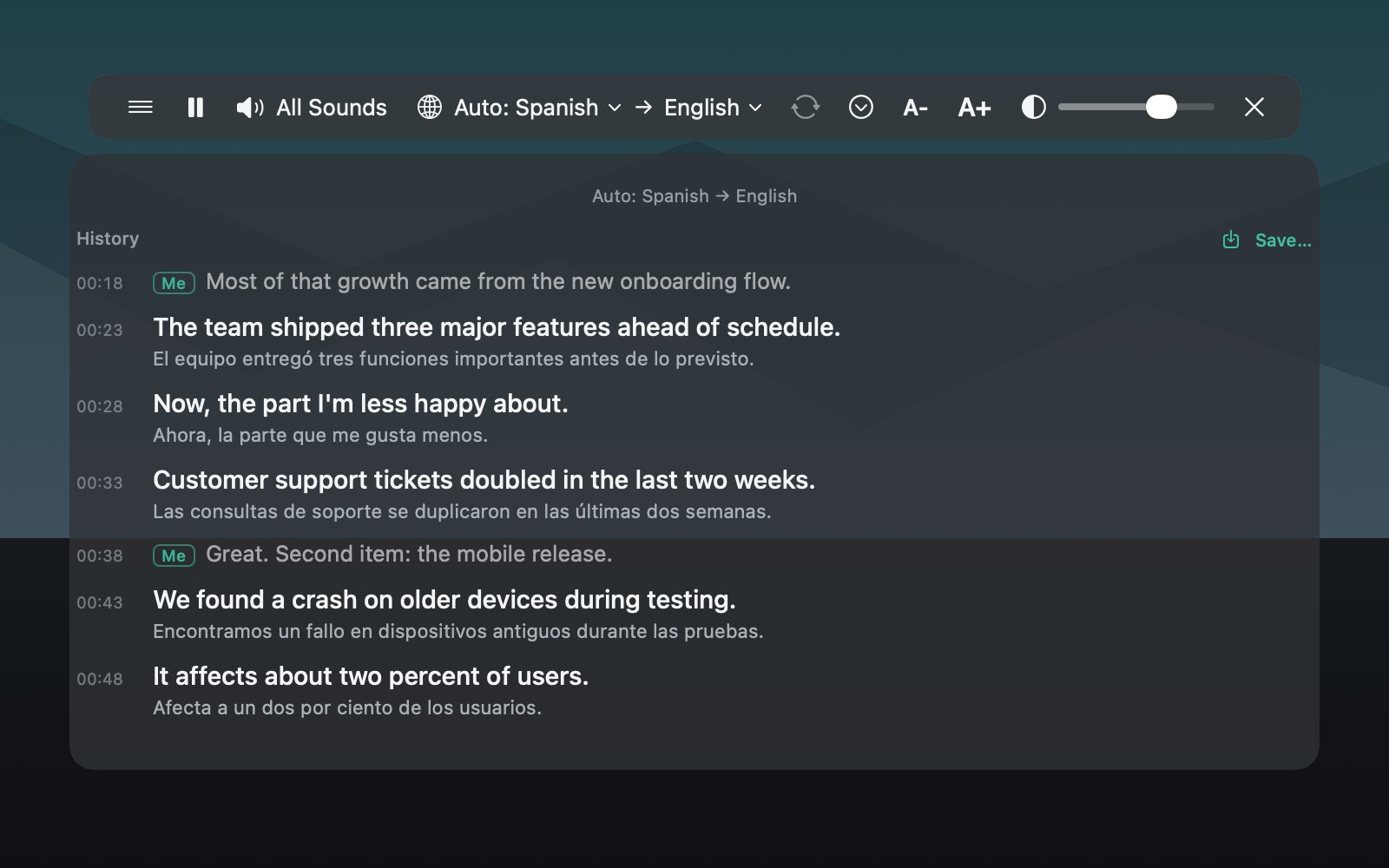
Using it in meetings: any meeting app, translation and original side by side
Live translation on Mac: what it handles and how it differs from cloud tools
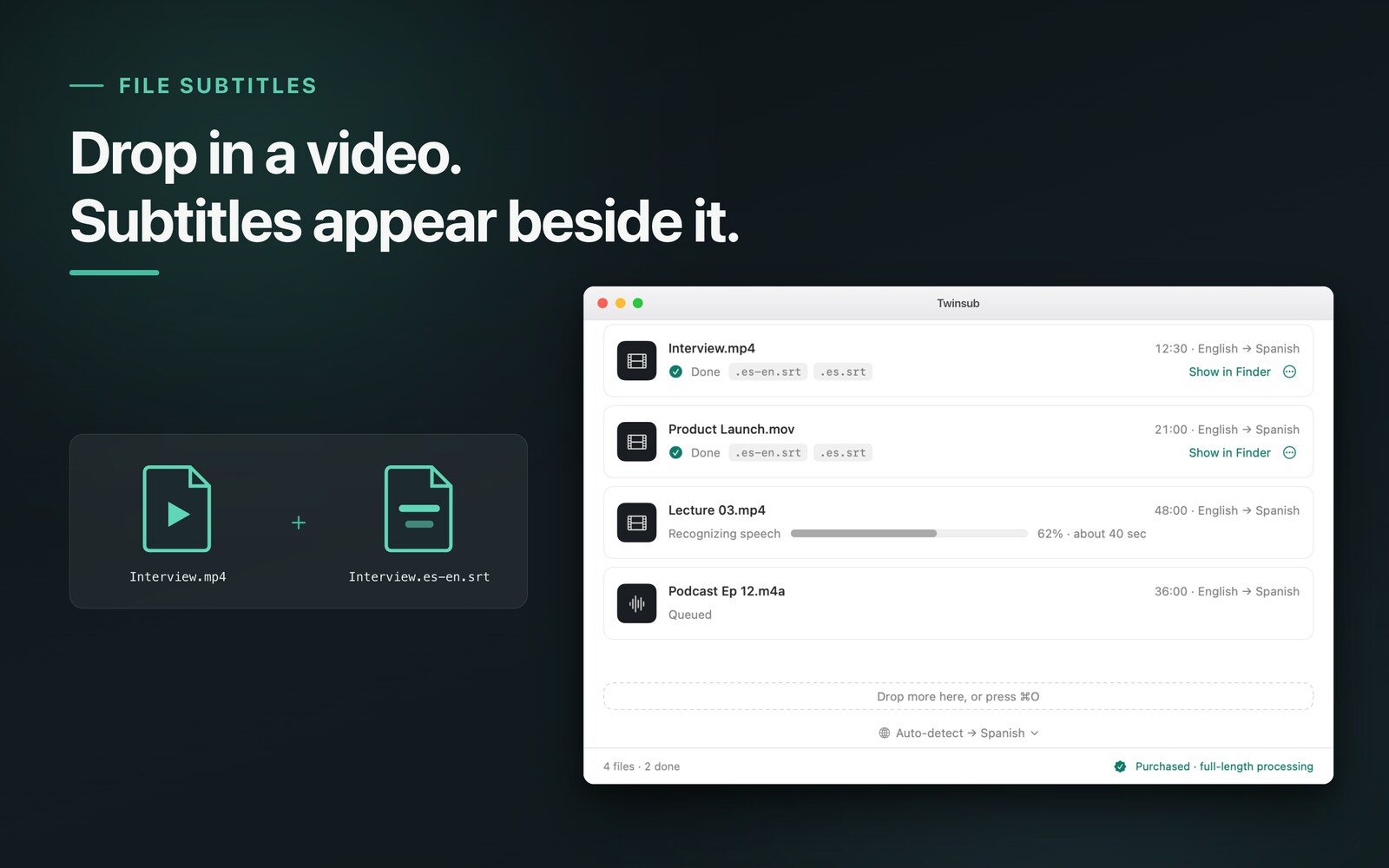
The output is a file like this
In the bilingual file the target language sits on top and the original below (you can swap the order in Settings), one clause per cue. Below are the first 4 cues of Interview.en-zh.srt, from a real run on a Chinese-language video with English as the target. It is real output, not a mockup.
1
00:00:00,060 --> 00:00:02,900
I want to have a chat with you today.
今天我想和大家聊一聊,

2
00:00:02,900 --> 00:00:05,300
How can a small team
spend very little money?
一个小团队怎样用很少的钱

3
00:00:05,300 --> 00:00:07,720
Make a really useful product.
做出一款真正有用的产品。

4
00:00:07,780 --> 00:00:10,450
At first, we only had a simple idea.
我们最初只有一个简单的想法,
Three steps
- Drop it inDrag videos or audio files into the window, as many as you like.
- Give it a minuteA 10-minute video takes about a minute, and you can watch the progress the whole time.
- Subtitles appear beside the videoThe same folder gets a bilingual
video.target-source.srt(for example.en-zh.srt) and a target-language-onlyvideo.target.srt(for example.en.srt), ready to import into CapCut or Final Cut Pro.
Three ways it is different
Recognition and translation run on your Mac
Neither your videos nor the sound you translate live leave this computer. There is no backend, so nothing passes through a server.
No account, no API key
Install it and use it. No sign-up, no keys to apply for, no per-call quota.
Line breaks done properly
Subtitles are cut by clause, not by raw character count: short lines, never a break in the middle of a word, at most two lines per cue.
Pricing
The first launch downloads the speech model once (under 1 GB). After that it works offline.
How to use it, how to choose
Tutorials, use cases and comparisons. Every page stands on its own.
- Bilingual subtitles for meetings: any meeting appUse case
- Subtitles for online courses and lecturesUse case
- Live translation on Mac: translate audio as it playsUse case
- How to add bilingual subtitles to a video on MacGuide
- How to check and edit SRT subtitlesGuide
- How to import an SRT into CapCut, Final Cut Pro and IINAGuide
- Local vs cloud transcriptionGuide
- Twinsubs vs CapCut, MacWhisper and online subtitle toolsComparison
FAQ
What is Twinsubs?
A live translator and subtitle tool for Mac. Whatever is playing on your computer is translated live into the language you choose and floats over the screen as an original-plus-translation caption. You can also drag a video or audio file into the window and an SRT file appears next to it: the source language is detected automatically (or you pick it), you choose the target language, and you get a bilingual subtitle file. When source and target are the same language, you get a punctuated single-language file and no translation. Import it into CapCut, Final Cut Pro or a player.
Are my videos uploaded to a server?
No. Speech recognition and translation both run on your Mac. There is no backend, so videos, the sound you translate live and the subtitles never pass through a server. The first launch needs a connection to download the speech model once, and macOS downloads the translation language packs.
How much does it cost, and what does the free version limit?
The free version processes the first 10 minutes of each video and 10 minutes per day of live translation; everything else is the same. A one-time purchase removes the limits for both videos and live translation, with no subscription. The price is shown on the App Store page at launch.
What formats does it output, and what can import them?
Standard UTF-8 SRT. The bilingual file is named “video.target-source.srt” with the target language on top and the source below (you can swap the order in Settings), for example Interview.en-zh.srt. The target-only file is named “video.target.srt”, for example Interview.en.srt. CapCut, Final Cut Pro, IINA and other software that reads SRT can use them.
Can it translate the sound on my computer live?
Yes. With live translation on, any sound playing on your Mac (meetings, courses, web videos) has its source language detected and is translated live into your target language, shown as a floating caption with the original and the translation together. It is processed on your Mac and nothing is recorded or saved.
How is it different from a translation app?
Most translators put the original on the left and the translation on the right, in a window you have to switch to. Twinsubs stacks the two into a two-line caption that floats over whatever you are watching, so your eyes never leave the video.
Does it work offline?
Yes, as long as the speech model and the translation language pack have been downloaded once. After that, recognition and translation both run on your Mac without a connection.
Can it subtitle a video in the language I speak?
Yes. When source and target are the same language, for example an English video with English as the target, it writes a single-language file only, such as video.en.srt, with punctuation and sentence-aware breaks, and no translation.
What Mac and system do I need?
macOS 26 or later on a Mac with Apple silicon (M1 or newer). Intel Macs are not supported.
How is it different from CapCut and MacWhisper?
Twinsubs is built around two jobs: live translation of whatever is playing on your Mac, and turning a local video file into a bilingual SRT (target language of your choice), all on your Mac, as a one-time purchase. It does not burn subtitles into video, include an editor, or tell speakers apart. The comparison page lists each point with its source.
When can I download it?
It is coming soon to the Mac App Store; the date depends on App Store release. For early access, write to twinsub@gatheon.com.
Coming soon to the Mac App Store
Before launch we would love to hear how you plan to use it: twinsub@gatheon.com