 Twinsubs
Turn audio, podcasts and recordings into subtitles on your Mac
You have a recording, a podcast episode, an interview or a voice memo, and you want timed subtitles, or text you can copy and search, without sending the audio to someone else's server. Twinsubs is not only for video: drop in an mp3, m4a or wav and you get an .srt beside it just the same. If the episode is in a language you do not understand, the same run can add a translation so you can read along as you listen.
What it can process
- Audio: mp3, m4a, wav, aac, aiff, flac and caf.
- The sound of a video: mp4, mov and other video files work too, and it is their sound that gets recognized.
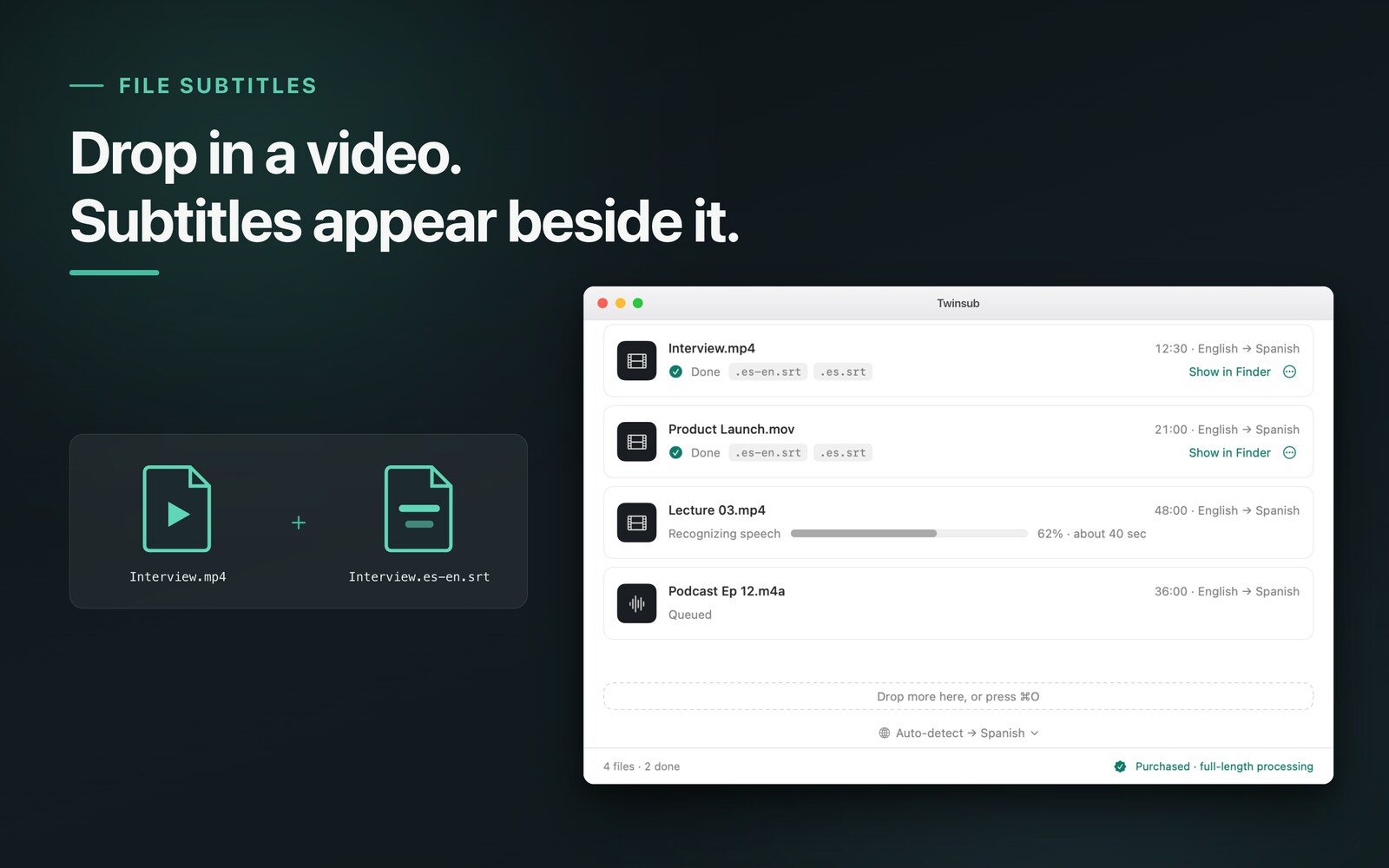
- Many at once: drop a batch in and it works through the queue in turn.
Three steps
- Drop it inDrag the audio file into the window.
- Wait a momentThe source language is detected for you, or you can set it by hand; you choose the target language. To get the original text only, pick the same language as the target. The first launch needs a connection to download a speech model once (under 1 GB).
- Find the subtitles beside the audioThe same folder gains an .srt: a single-language file such as
Podcast.en.srt, and for foreign-language audio a bilingual one such asPodcast.en-zh.srt(target first, source second).
What you can do with the SRT
- Use it as subtitles: for a video podcast or an audio show with pictures, import the SRT into an editor, as described in import an SRT.
- Turn it into a plain-text transcript: an SRT is plain text, so removing the numbers and timecodes leaves a transcript. The method is in the section on converting to plain text in check and edit SRT subtitles.
- Read along with a foreign-language episode: the translation sits above the original, so a sentence you missed is clear at a glance and the original stays there to compare.
- Find a spot by keyword: search the SRT for a phrase, and the timecode beside it is where it sits in the audio.
In file mode Twinsubs writes SRT. It does not export txt directly or a transcript with speaker names. For plain text, convert the SRT as described above.
Which audio suits it
- Podcasts and interviews: your own show, or a foreign-language episode.
- Course and lecture recordings: turn them into subtitles or notes; see subtitles for online courses and lectures.
- Voice memos and interview material: content you would rather not upload stays on your Mac.
- Listening material in a foreign language: read the two lines side by side.
When a recording contains other people's voices, make sure you are allowed to process it, and tell them first where that is appropriate.
Limits, stated up front
- No speaker separation: a conversation comes out as continuous subtitles, with no marking of who said what.
- Accuracy: loud background music, people talking over each other, heavy accents and technical terms make mistakes more likely. Check numbers and names against the audio.
- Not live: this processes audio files that already exist. To translate while something plays, see live translate videos and streams.
- No lyric alignment: it recognizes speech.
- Allowance: the free version processes the first 10 minutes of each file; the purchase removes the limit.
- System: a Mac with macOS 26 or later, Apple silicon.
Privacy: the audio stays on your Mac
Recognition and translation both run on your Mac. There is no backend, so the audio never passes through a server. Only the first launch needs a connection, to download the speech model once; translation language packs come from macOS and work offline afterwards. See the privacy policy.
FAQ
Which audio formats work?
mp3, m4a, wav, aac, aiff, flac and caf. Video files work too, and it is their sound that gets recognized.
Can it export a text transcript directly?
File mode writes SRT. An SRT is plain text, and removing the numbers and timecodes leaves a transcript; the method is in the guide on checking and editing SRT.
Can it tell who is speaking?
No. A conversation comes out as continuous subtitles with no speaker labels.
Can it translate a foreign-language podcast at the same time?
Yes. Pick your target language and you also get a bilingual file with the target on top and the source below. For the original text only, pick the same language as the target.
What about very long audio?
The free version processes the first 10 minutes of each file; the purchase processes the full length. Speed is similar to video, and progress is always visible.
Does it need a connection?
Recognition and translation both run on your Mac, and the audio is never uploaded. The first launch needs a connection to download the speech model once; after that recognition runs on your Mac.
The podcast is playing right now. Can I get subtitles as I listen?
That is what live translation does: it handles the sound playing right now. See the page on live translating videos and streams. File mode handles audio files that already exist.
Updated 2026-10-12. Back to the Twinsubs home page